"Education is the most powerful weapon which you can use to change the world"

"We are stuck with technology when what we really want is just stuff that works"

"If there is no fundamental science then there is no basis for applied science. World Wide Web has changed the world dramatically"

"The meeting of two personalities is like the contact of two chemical substances: if there is any reaction, both are transformed"

"A picture is a secret about a secret, the more it tells you the less you know"

"If there is anything that a man can do well, I say let him do it. Give him a chance"

Command Prompt on Right-Click Menu


This trick shows you how to add an option called "Command Prompt" when you right-click on a folder in Windows. With this option, a Command Prompt Window will launch and its current directory will be the path to the folder you've selected.

You can manually edit the registry:
  1. Start > Run
  2. Enter "regedit" and hit Enter
  3. Expand to "HKEY_LOCAL_MACHINE\SOFTWARE\Classes\Folder\shell"
  4. Right-click on "shell" and select New > Key
  5. Make sure a new key is created under "shell". Change the name of this key to "Command Prompt"
  6. Right-click on this new key "Command Prompt" and select New > Key
  7. Change the name of this key to "command"
Here's what we should have: 


  1. Double-click on the "(Default)" text on the right window to bring up the edit box
  2. Enter this text into the Value Data field:
    cmd.exe "%1"
  3. Click OK and close the registry. 
 Now check and you'll see like below


How to change icon on a hard disk/pen drive


When we open the My computer, we can see hard disk partitions, pen drives etc.Default icons of those are like below picture.


Everyday we can see the same icon.So sometimes it will be boring.Today i am going to teach you regarding the icon change of those drives.Perhaps you know this.But check this out. 

Extension of icon files is .ico as you know.We can find beautiful icon in the internet.Otherwise We can put even our photograph as an icon.But for that we have to change the file type of that our photograph to .ico extension.For that we can use a software like Any to icon.

 First of all copy the icon file to the partition which you want to change the drive icon.As an example now I want to change the icon of my E drive.So I copy the icon file to my E drive.(For this I used Any to icon software to change my photo to an icon file) 


Now we need to create an Autorun file.For this go to Start --> All Programs --> Accessories and open the notepad.Copy the below code to the notepad.

[Autorun]
icon=infotec1st.ico


In this part, change your icon name with the name infotec1st.I have used infotec1st as my icon file name.It means you have to type your icon file name with .ico extension.To save this, go to File -- > Save As and from the save as dialog box type Autorun.inf as the file name.It means extension of this file should be .inf.Save As Type should be All Files and click the save button.

We have already finished our work.Hide both files and restart the computer.After that you can see that your dive icon has been changed like below picture


 What do you think about this?I think it will be very useful to you.Okay good bye.We'll meet with another post.


Windows God Mode


"God Mode" simply provides users with a centralized Control Panel for all of Windows' settings, from changing your desktop background to setting up a VPN or partitioning your hard drive. In all, there are nearly 50 categories and most have several entries.


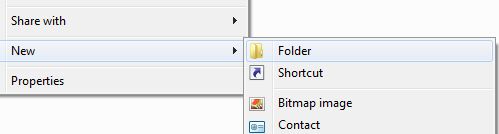
1) Create a new folder. Anywhere is fine


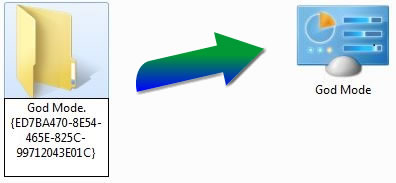
2) Rename the folder to:
  • For Windows 7 and Windows Vista: God Mode.{ED7BA470-8E54-465E-825C-99712043E01C} 
  • For Windows XP: God Mode.{21ec2020-3aea-1069-a2dd-08002b30309d}
(Note: The "God Mode" chunk can be called anything you want)


The default folder icon will change to a Control Panel icon, and you can open it to view all of the settings.


It may be hyperbolically named, but Windows 7's God Mode is indeed omnipresent. It conveniently puts hundreds of settings from all around the operating system all in one place.


Remove the small arrows in shortcut icons


Today I am going to teach you something special.As we know, when we create a shortcut in computer, we can see an arrow beloow the icon like this


So I am going to teach you the way to remove that small arrow easily.Follow me.

  • Go to Start --> Run or Start --> Seach box and type regedit and enter to open the registry editor


  • Now find the HKEY_CLASSES_ROOT key and open it


  • In that key, there is another sub key called lnkfile.open tha.Now delete IsShortcut value


  •  

    • There is another sub key called piffile .open tha.Now delete IsShortcut value 


    Restart the computer
    Now you can see the difference.


    what do you think?Comment or Like 


    Add a Custom Message to the Welcome Screen in Windows7........


    • Open the resource folder and double click reshacker


    • File > Open >Local Disk(C) > Windows >System32 > logonui select and open String Table > 1 > 1033


    • In the line 7 there is a word "WELCOME".Put your preffered name to there and press compile script.

    • File > Save as > logonui_new

    • Close that and open Replacer folder double click > replacer

    • Now drag and drop  Local Disk(C) > Windows > System32 > logonui file > Enter

    • Now drag and drop the new logonui_new and Restart the computer

    Done
    Your comments are highly appreciated


    Computer Overclocking..........


              Overclocking a computer's processor or memory causes it to go faster than its factory rated speed. A processor rated at 2.4GHz might be overclocked to 2.5GHz or 2.6GHz, while memory rated at 200MHz might be pushed to 220MHz or higher. The extra speed results in more work being done by the processor and/or memory in a given time period, increasing the overall computing performance of the PC.

    For older processors, heat is also a factor worth keeping a close eye on. Modern processors have thermal sensors which will slow down or shut off the PC, but older CPUs do not necessarily feature these safety devices. The best know example of this is the AMD AthlonXP (socket A/462), which was famous for burning itself up in less than 5 seconds if the heatsink was not installed properly (or at all).                  

                        Overclocking the processor and system memory can significantly boost game performance, benchmark scores and even simple desktop tasks. Since almost every modern processor and memory module is overclockable to at least a slight degree, there are few reasons not to attempt it.

    Preparing for Overclocking

                          In order to get the best out of current hardware, the most recent drivers and BIOS version for the motherboard need to be acquired. System benchmarks should be run pre-overclocking to establish a performance 'baseline'.

    Readers should visit their motherboard manufacturer's website to obtain the most recent set of drivers for their motherboard, as well as the most recent BIOS version. For instructions on finding the current BIOS version and overwriting it with a newer edition, see PCstats' Guide on the subject. Newer BIOS versions may add overclocking options and stability, so this is always a good first step.


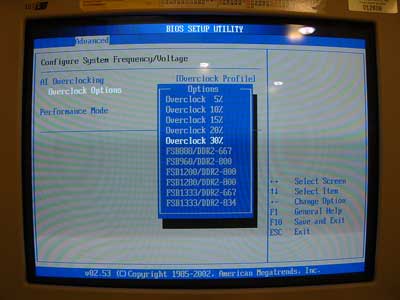
                            As seen in the screenshots below, this page will contain the FSB adjustment controls and voltage adjustment controls.
    Increasing the FSB or 'CPU host frequency' or (Motherboard Clock or FSB or a host of other terms for the same thing) will increase the FSB speed of the motherboard, overclocking the processor and memory at the same time.
    Increasing the voltage to the CPU core, memory or chipset will feed more power to those components to aid in stability while increasing heat.
    This page may also contain memory divider options depending on the motherboard.
    Everything needed to overclock the system should be on this one BIOS page.


    Different motherboard's BIOS screens will look different and use different names for the various menus and options, but the options themselves should be grouped together in one menu as seen above. If the memory timings options are not visible, try hitting CTRL+ALT+F1 when entering the BIOS.
    The second BIOS page that should be identified now is the 'PC health status' page, or similar.


    1. Boot the computer into the BIOS screen.
    2. Increase FSB speed in 5-10MHz increments. Reboot after each increment to ensure that the system can still boot into Windows properly.
    3. If the system hangs, crashes or refuses to boot into Windows, increase the memory voltage slightly and retry. If this does not work, increase the chipset voltage and finally the core voltage. If this still does not work, reduce FSB settings slightly, reset the voltages to their previous values and try again.
    4. Keep going until the system can no longer boot reliably into Windows, then back off to the previous 'safe' settings. Keep an eye on the processor's temperature in the BIOS. Remember that it should be under 70°C.
    5. Benchmark the overclocked system and compare the results to the performance baseline established earlier. If the system does not complete the benchmarks or crashes, either reduce the FSB setting slightly or increase voltages to compensate and retry.

      6.After the operation Restart the computer


      Your comments are highly appreciated


                Add Your Own Images to MP3 Files........

                Every Times when we Hear a mp3 Song, we see a Background Image/Picture is Showing on Our Media Player, These Images are called Album Arts, cover image or tagged image.Album arts make mp3 song more beautiful and our media Players too. Do you ever think that How this Images are embedded with mp3 files?
                Today I am going to tell you about this.The way to add Image/ Album arts to any mp3 songs. Adding a new image or changing the existing mp3 image is really a easy.

                This Can be Done by a Simple and Free Software Mp3tag. Download it from Here.This is the one of the most famous Freeware for Tag Editing. By the help of this software we can edit metadata of common audio formats where it supports ID3v1, ID3v2.3, ID3v2.4, iTunes MP4, WMA, Vorbis Comments and APE Tags. It can rename files based on the tag information, replace characters or words in tags and filenames, import/export tag information, create playlists and more.Your image file must be in JPG, JPEG or PNG format.

                Adding an image or picture to mp3 files:


                Open Mp3tag software on your PC.


                • Select the directory where the mp3 files are located.
                • After loading all mp3 files of the selected directory, you can choose one or all files to be   changed.
                •  If the selected mp3 file contains an album art then it will be shown bottom left.


                • To add an image first click on extended tags and a Tags window will come.
                • From the Tags window you can change any details from Metadata located on the left.
                                   
                • The cover section, located on the right side, will allow you to add a cover image.
                • To add or change the cover image, hit the Add cover and browse your desired image file.
                • Select your image file and press OK.
                • You've changed the mp3 Album Art.Play that song you will see the Album art is appearing

                Your comments are highly appreciated


                Configure Office outlook 2007 to Gmail...................


                • Enable IMAP in Gmail. Don't forget to click Save Changes when you're done.
                • Open Outlook.
                • For new setups, select Do not upgrade.
                • Click Yes.
                • Enter your display name, email address (including '@gmail.com'), and password. Google Apps users, enter your full email address, e.g. 'username@gmail.com.'
                • Select the 'Manually configure server settings or additional server types' check box
                • Select Internet E-mail.
                • Settings: name, full email address (including '@gmail.com' or '@your_domain.com')  
                • In the Account Type dropdown menu, select IMAP. In the 'Incoming server name' section, enter: imap.gmail.com and in the 'Outgoing server name (SMTP)' section, enter: smtp.gmail.com.
                • In the 'User Name' field, give your full Gmail address, including '@gmail.com' or '@your_domain.com.'
                • After creating these settings, clicking Next takes you to the end of the setup.
                • In the Tools menu, select Options then Mail Setup. Under 'Email Accounts,' click E-mail Accounts.
                •  Select an account, and click Change above the list of accounts. Click More Settings, then the Advanced tab. 
                • Incoming server must be 993, and must use SSL3 encryption.
                • Outgoing server can use 587, TLS4 encryption.


                • Click the Outgoing Server tab. Make sure that 'My outgoing server (SMTP) requires authentication' is selected. The radio button 'Use same settings as my incoming mail server' should also be selected.


                • Click OK > Next > Finish > Close > OK.

                Your comments are highly appreciated


                Boot Windows 8 into Safe Mode..................


                Like other features of Windows 8, boot into safe mode is yet to learn. Once you will learn it, you will find it easier. One of the most common issue of any PC in case of troubleshoot is boot PC in ‘Safe Mode’. Extant operating system gets into safe mode by pressing F8 key. It has all changed with Window 8 but what if we want safe mode. You can have it but its buried deep down in Windows recovery option. You can still get into Windows recovery mode.

                Your Pc is always at the risk of viruses and errors, which causes your PC to slow down or unable to turn own. To deal with this issue, you must have an anti-virus in your system and safe free registry cleaner such as Registry Recycler to avoid errors.

                Booting into safe mode

                To get into safe mode press ‘Shift’ button and mash ‘f8’ key. This will boot you into advanced ‘recovery mode.’ Now you can see advance repair options. Find ‘troubleshoot’ option on screen and now select advanced options. Now choose Windows Startup Setting option and hit ‘restart’ button. You will see familiar Advanced Boot Options screen.
                Windows 8 has an extra feature; it let you to go into safe mode within Windows.

                Safe mode within Windows 8

                You can also get into safe mode within Windows but it requires you to boot into Windows already. To do this, press Windows+R key in combination and you will see a box appear. In this box, type ‘msconfig’ and hit Enter. Another box will appear, go to tab ‘Boot’ and check ‘safe mode’. You also have option to choose type of safe mode.

                Minimal- is a normal safe mode
                Alternate Shell – is safe mode with command prompt
                Network – is safe mode with networking
                Active directory repair – pertains to restoring a server, which is domain controller of respective network

                Once you have selected desired options click Ok and restart computer. Now this time your PC will boot in safe mode automatically. If you will restart your computer, it will boot again in safe mode until you uncheck safe mode option in ‘msconfig’. Uncheck option and now restart PC, it will boot normally.

                It is not that difficult to boot into safe mode using Windows 8, even Microsoft has made it easier and useful.


                Your comments are highly appreciated


                How to install Windows 8 correctly...............


                After booting from the DVD, the first thing I encountered was the new light blue Windows logo on a black background, as shown in below. This image remained on the screen for a few moments while Setup was initializing.
                After a few minutes, you’ll see the Windows Setup screen and you will specify your language settings before clicking Next. When you do, Setup will perform some more initialization tasks in the background.see the below image


                As soon as the initial steps are taken, you’ll see the Windows Setup screen shown like below.Now click the Install Now button.


                Once you click the Install now button, you’ll see the the first step here is to input the Windows 8 product key.


                The next step is to acknowledge that you accept the license terms, as shown in below image.


                When you are prompted to choose which type of installation you want to perform, you’ll need to choose Custom: Install Windows only (advanced) type in order to perform a clean install of Windows 8 like below


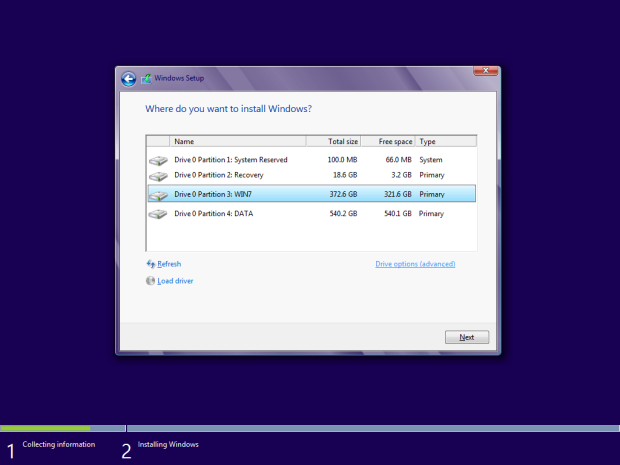
                When you are prompted to choose where you want to install Windows, as shown below, you’ll see a list of any partitions that are currently on your hard disk. You may have a different combination depending on your system.


                To create partitions, you start by clicking Drive options (advanced). When you do so, you’ll see a list of commands for managing partitions, as shown in below image.


                Now, you’ll select each of the partitions, one by one, and select the Delete command. When you do, you’ll see a confirmation prompt. Just click OK to delete the partition.


                Once you delete each of the existing partitions, you’ll see that all of the space will be combined together in one chunk labeled Unallocated Space. While you could create a new partition and format it, you don’t have to. Windows 8 will automatically take care of that in the next step. So just go ahead and click Next.

                When you click Next, Setup creates the partition, formats it, and then instantly moves into the Installing Windows phase which begins with copying and getting files ready for the installation, as shown in below image. This process will take a while to progress though.


                When this phase of the process is complete, Windows will alert you that it is going to restart in order to continue

                Upon restarting you’ll see the black screen with the blue Windows logo and see that Setup is getting devices ready, as shown. As soon as that part of the process is complete, Windows will alert you that it is going to restart again


                Windows Setup will get all installed devices ready to work with Windows 8.


                When the system restarts, you’ll be prompted to choose a color scheme for Windows 8 and a PC name, as shown in below.

                When the Settings screen appears, you can choose to customize these settings or you can allow Windows to use the express settings. If you are unsure, you can click the Learn more link and get more details.chose to use the express settings.You  can change any or all of these setting later if you want.


                On the next screen, you’ll choose how you want to sign on to Windows 8, as shown in below picture. While you can choose to sign in with a local account


                The advantage of using an existing Microsoft account or creating one is that you will be able to instantly use the Windows Store, will be able to easily sync settings between multiple Windows 8 computers, and be able to easily take advantage of other Windows 8 features.
                After filling the details of your account on the next couple of screens, you’ll eventually see a screen that changes color as it alerts you the Setup is getting your PC ready. 


                As you may know, Windows 8 comes with a host of native apps for the Start screen interface that replace and add to the group of applications that used to come with previous versions of Windows. The below screen indicates that Setup is installing those apps.


                Your comments are highly appreciated